
The ABCs of ADV: Using Orion Connect to Prepare for Filing SEC Form ADV
The article explains how financial advisors can use Orion Connect’s Compliance App and ADV Dashboard to efficiently prepare and manage data settings for filing the SEC Form ADV by grouping and editing account information to ensure accurate reporting.
🎟 Don't Miss Our Limited $849 Ascent Offer — Save $350 With Code ASCENT27EB. Register Now →
The ABCs of ADV: Using Orion Connect to Prepare for Filing SEC Form ADV
Advisor Tech
March 10, 2020
March 10, 2020 04:10 AM
Share: Facebook Twitter LinkedIn Email
Whether it’s you wearing the compliance officer hat at your firm or someone else, you know juggling the ever-changing regulatory requirements and leading internal processes can be a lot. But with Orion, you’ve got tools to complete compliance obligations quicker and easier, including preparing to file SEC Form ADV.
Let’s walk through how to manage settings for the SEC Form ADV data in Orion Connect and how to pull that data from the Form ADV Compliance Dashboard for this week’s Tech Tip.
[bctt tweet="Preparing to file your SEC Form ADV is quicker and easier using Orion Connect's Compliance App." username="orionadvisor"]
How to Manage Settings for Form ADV Data
Orion Connect’s ADV Dashboard pulls the information you need for your Form ADV reporting with one click. But, you must set up and maintain certain data fields to make sure it displays the correct information.
Edit Accounts
Do you have any accounts that should be excluded from ADV reporting? If so, determine if there is a unique identifier that can be used to group together these accounts. For example, maybe the accounts can be grouped by custodian, management style, or fund family. Once you have chosen an identifier, follow these steps:
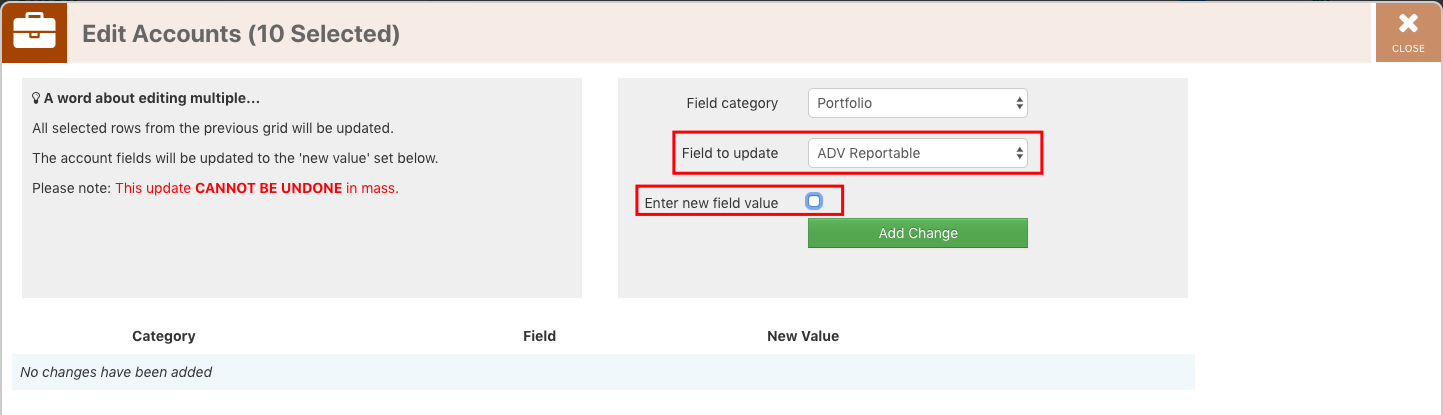
- 1.Open the Portfolio Audit App
- 2.Go to the Accounts grid
- 3.Highlight all related items that you wish to edit
- 4.Right-click and select “Edit Accounts”
- 5.A pop-up box will appear. In the “Field to Update” drop-down, select “ADV Reportable”
- 6.In the “Enter New Field Value” line, make sure the box is unchecked.
- 7.Hit “Add Change”
- 8.Then click “Save”
Repeat this process until all necessary unique groups have been excluded.
Edit Products
If you have any products that should be excluded from ADV reporting, complete these steps:
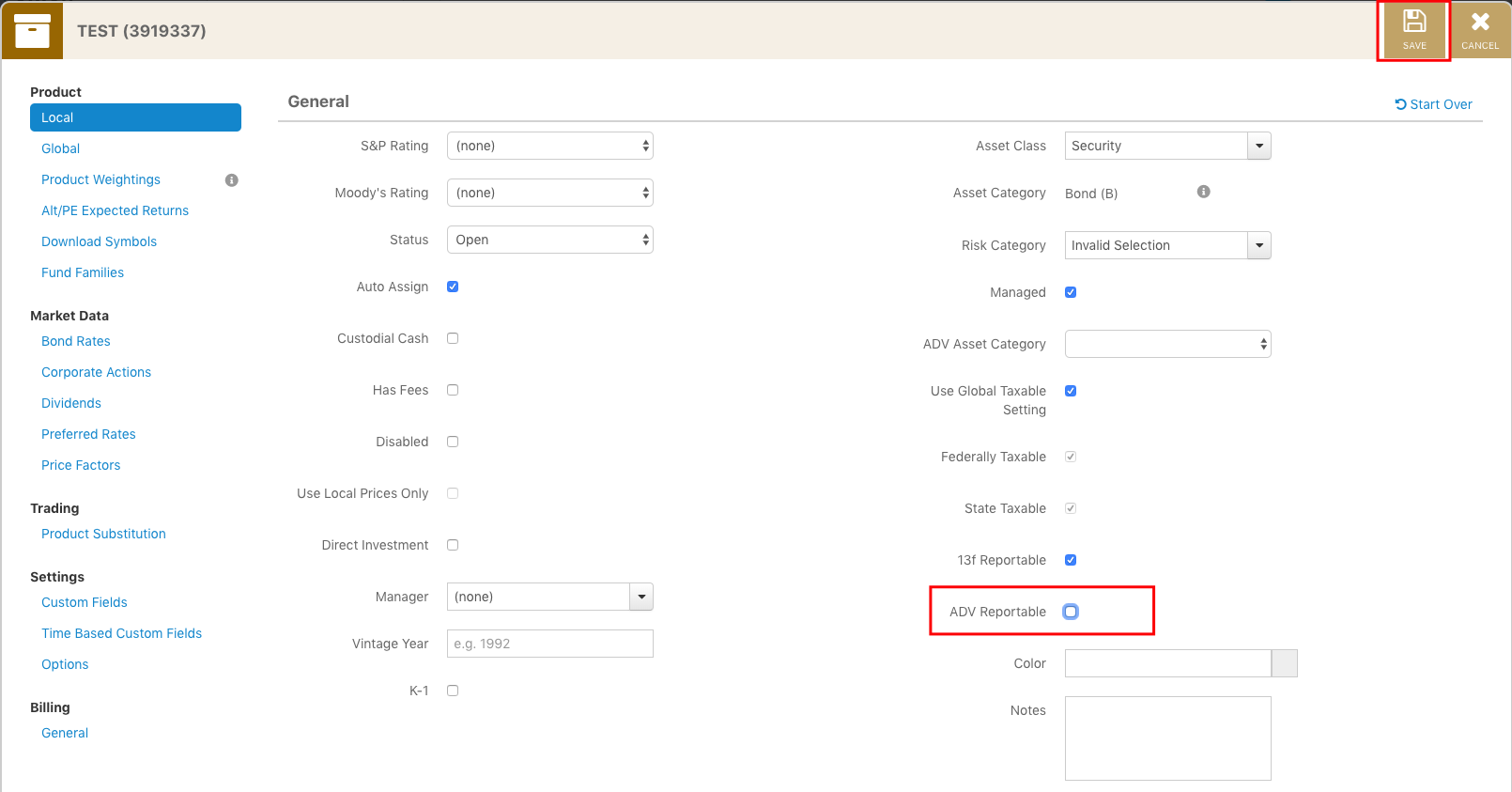
- 1.Open the Products and Prices App
- 2.Locate the product to remove
- 3.Right-click and select “Edit Product”
- 4.Uncheck the box in the “ADV Reportable” field
- 5.Hit “Save”
Repeat this process until all necessary products have been excluded.
Edit Assets
If you have any assets that should be excluded from ADV reporting, complete these steps:
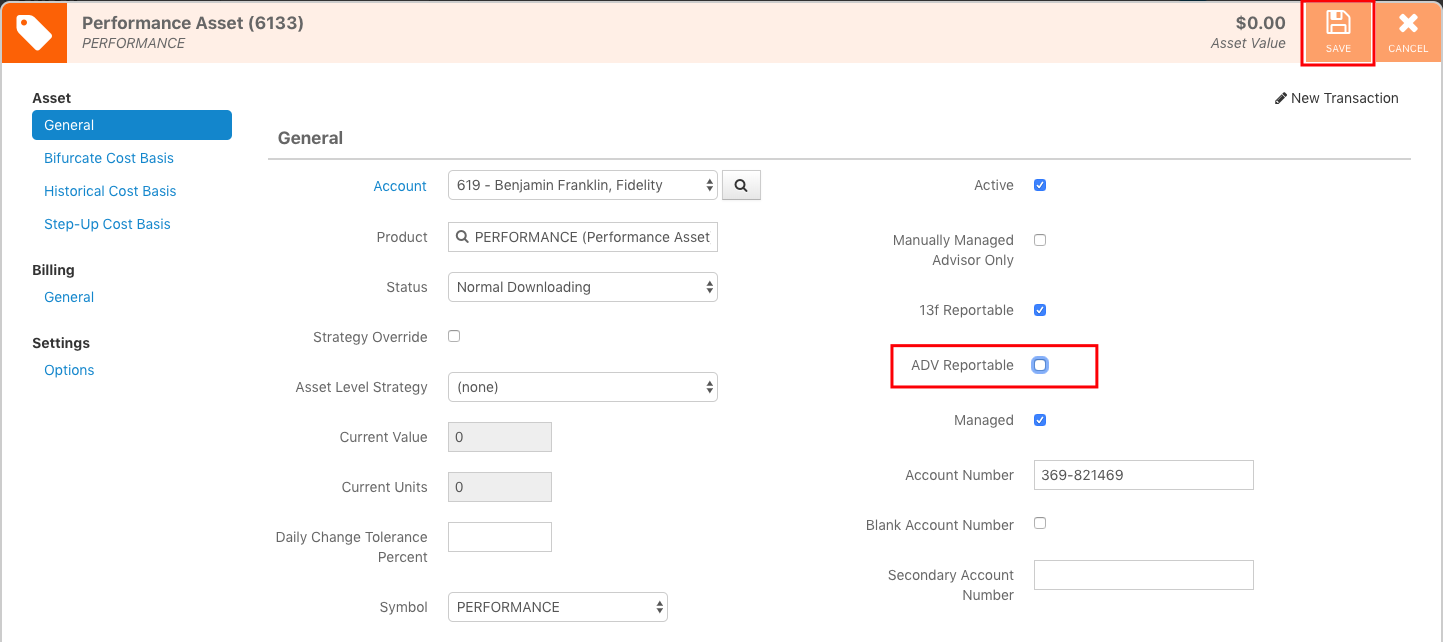
- 1.Open the Portfolio Audit App
- 2.Locate the account that contains the asset(s)
- 3.Right-click and select “Assets”
- 4.Locate and right-click on the asset and select “Edit Asset”
- 5.Uncheck the box in the “ADV Reportable” field
- 6.Hit “Save”
Repeat this process until all necessary assets have been excluded.
Assign ADV Client Category
In order to group clients by category, first identify your primary client types. For example, you could use Individuals and High Net Worth Individuals as groups. To assign households to these groups:
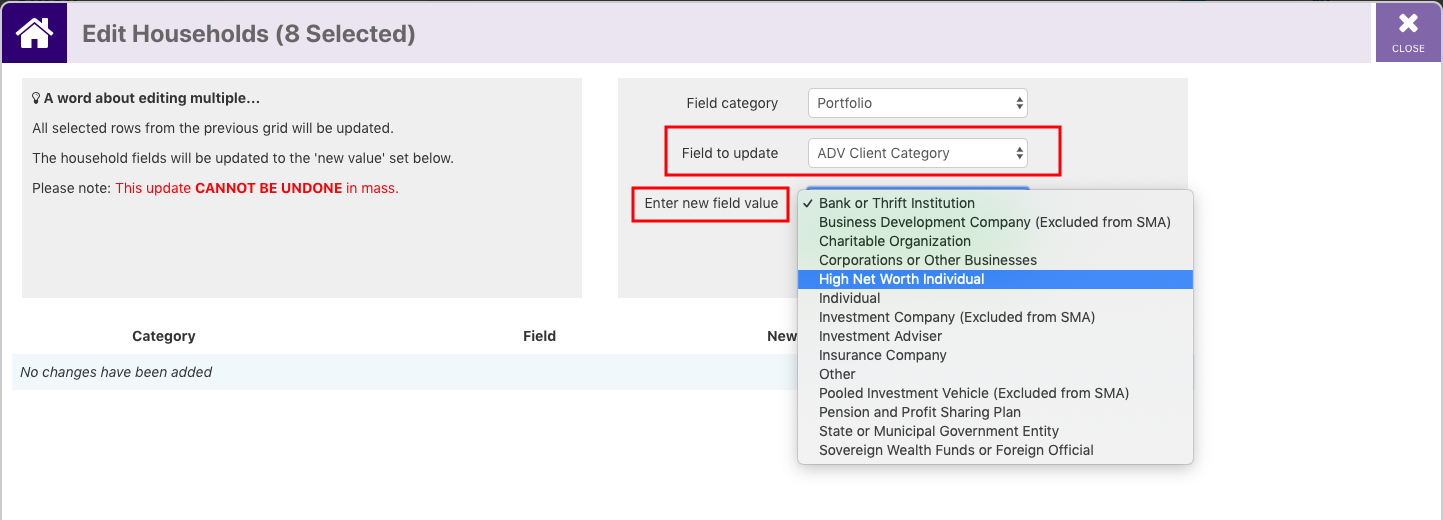
- 1.Open the Portfolio Audit App
- 2.In the Households grid, sort by “Current Value,” highest to lowest
- 3.Highlight the households that have $1 million or more in investable assets with you for High Net Worth Individuals or less than $1 million for Individuals.
- 4.Right-click and select “Edit Households”
- 5.A pop-up box will appear. In the “Field to Update” drop-down, select “ADV Client Category”
- 6.In the “Enter New Field Value” drop-down, select the correct category
- 7.Hit “Add Change”
- 8.Then click “Save”
Repeat this process until all households are accurately categorized.
How to Compile AUM Data for SEC Form ADV
The SEC requires you to report on Form ADV your client AUM based on client type, percentage of AUM, and custodian. As noted in the section above, the Orion ADV Compliance Dashboard allows you to compile all of these items into a single report.
From the Orion Connect home screen, go to the Compliance App, select “ADV Dashboard” under the “Disclose” section on the left-hand side of the screen, and you will then see an overview of all of your firm’s data that you will need for Form ADV.
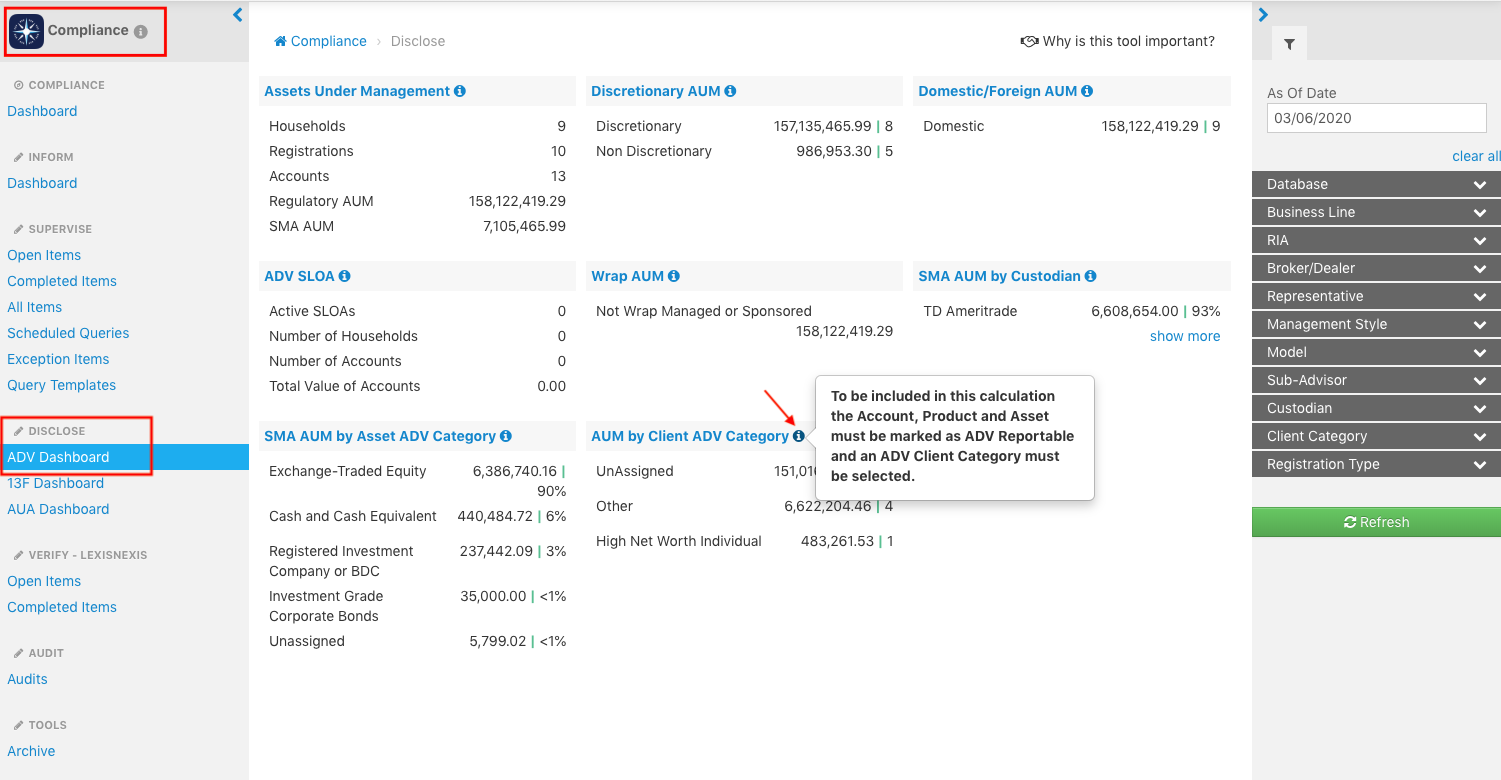
The data will be broken down into different sections, including regulatory AUM, discretionary AUM, AUM by client category, and more. You can mouse over the Information icons to get a short description of each section and/or click the title of a section to get a full view of all of the individual data points in that section.
From there, you can export any view to an Excel spreadsheet to help you compile your Form ADV information.
Update Unassigned ADV Asset Categories
If you show some “Unassigned” in the ADV Asset Category due to missing product type or product subtype associated with the product in your database, follow these steps to assign them:
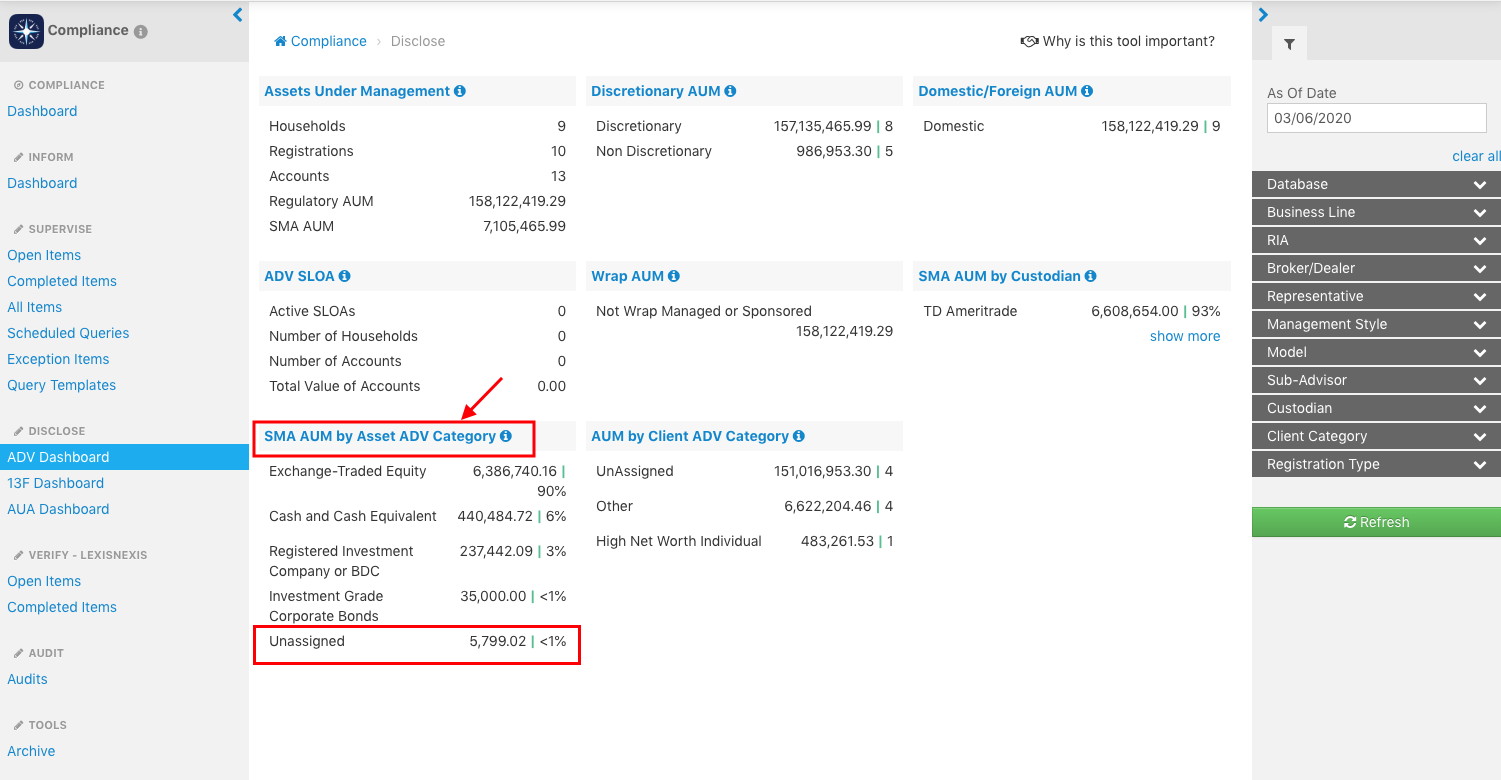
- 1.Select the “SMA AUM ADV Asset Category” tile heading
- 2.Type “Unassigned” in the cell below the ADV Category column heading
- 3.Right-click on each product and select “Change Product ADV Category”
- 4.In the pop-up box, use the drop-down to assign the ADV Category based on your knowledge of the product
- 5.Click “OK”
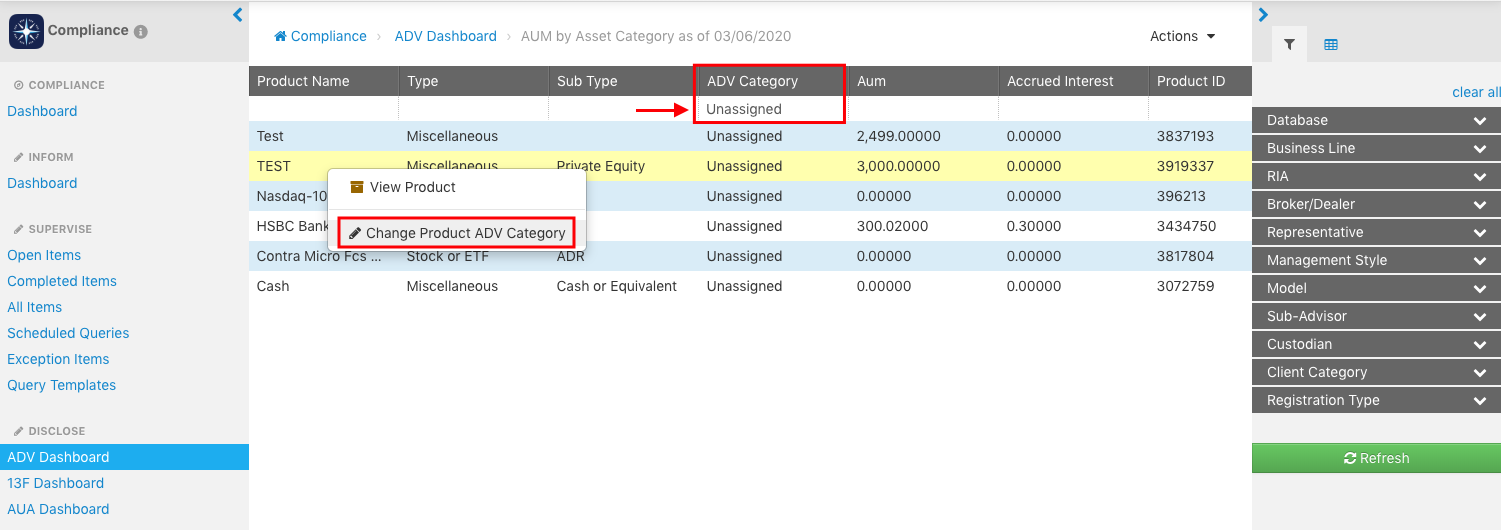
You may need to repeat this process until all products are accurately assigned. Check out this article if you need help with the mapping.
For more information about Form ADV or other compliance processes, contact our Orion Compliance Team.
0564-OAS-3/9/2020
Copy link
✓
Thanks for sharing!
Find any service
A2A